Media Monitoring in AI PR Toolkit helps you track mentions of your brand, product, or other keywords across news, blogs, Reddit, and YouTube. A well-structured query will catch just the results you’re looking for.
Here’s a step-by-step guide on how to build your first media monitoring query.
Step 1: Create a query
To begin tracking media mentions:
- Go to AI PR > Media Monitoring
- Click Create query
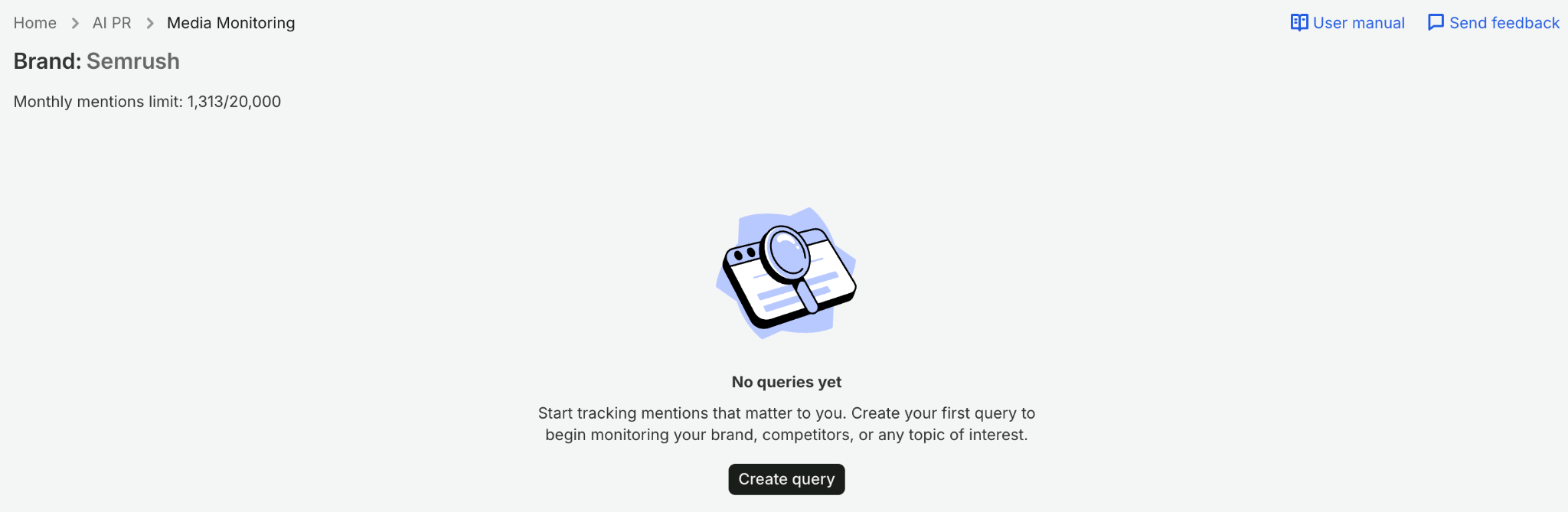
- Under Brand keywords, enter the keywords you want to track, such as brand names, product terms, or industry phrases
Tip: If you track multiple brands or regions, set up a separate query for each one to keep your results organized and easier to compare.
Use primary and secondary criteria
Your search centers on the primary criterion. You set it up by adding 1 or more keywords in 1 of the 2 fields: any of these terms or all of these terms.
- any of these terms (OR operator): Results contain at least 1 of these keywords
- all of these terms (AND operator): Results contain all of these keywords
For example, if you want to monitor conversations about electric vehicles:
- any of these terms: "electric cars," "EVs"
- all of these terms: "electric vehicles," "battery technology"
Best practice: Keep your keywords clear and specific to reduce noise and improve accuracy.
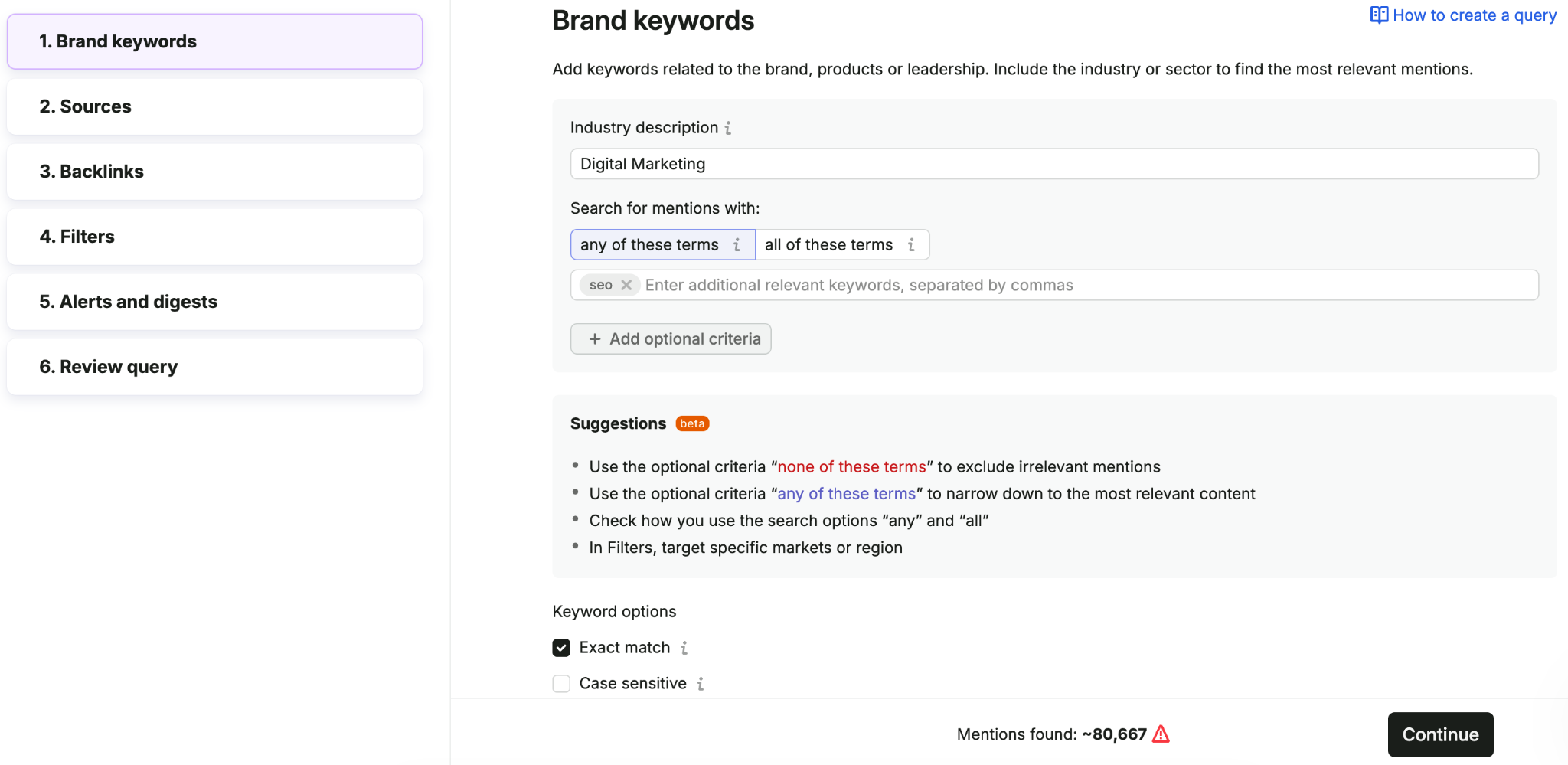
Use the AI query assistant suggests
When setting up your query, the AI query assistant suggests keyword expansions and exclusions to improve your results. It may propose brand name variants, acronyms, or synonyms, as well as terms to exclude if they are similar but unrelated.
Suggestions are generated automatically during setup. You can review and apply them as needed to refine your query.
Add more keyword groups (optional)
If your topic is broader, you can expand or refine your search by adding extra keyword groups. Click + Add optional criteria to include additional search terms all of these terms, any of these terms, or none of these terms.
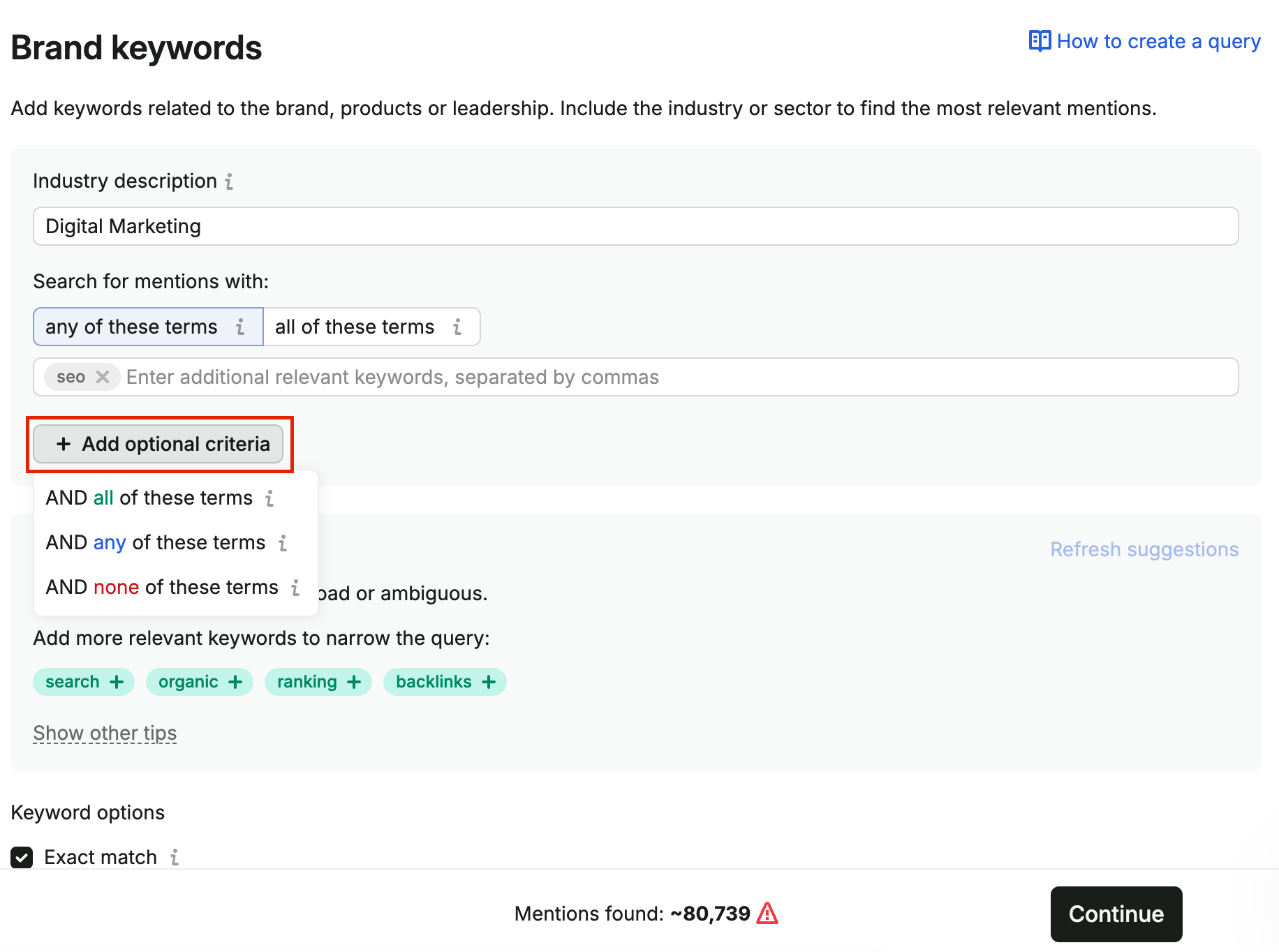
Use optional criteria to:
- Add at least 1 term from a supporting group, such as related product names or variants (all of these terms)
- Include results that mention any of your main keywords (any of these terms)
- Exclude mentions that contain unwanted terms (none of these terms)
Optional criteria are especially helpful when your brand name is generic or your topic has multiple meanings.
Adjust keyword behavior
Under Keyword options, you can adjust how the search works:
- Exact match: Finds only mentions that exactly match the word or phrase you typed, excluding other forms and variations — for example, searching for "bike" does not return results like "bikes," "biker," or "biking"
- Case sensitive: Finds only mentions that match your uppercase and lowercase letters, for example "Apple" ≠ "apple"
- No press release pickups: Removes press release reprints from wire publications to remove duplicates from your feed

Once your keywords are ready, click Continue.
Step 2: Choose sources
- Under Sources, select the media sources you want to track:
- Online news
- Blogs
- Discussions (eg. Reddit)
- YouTube
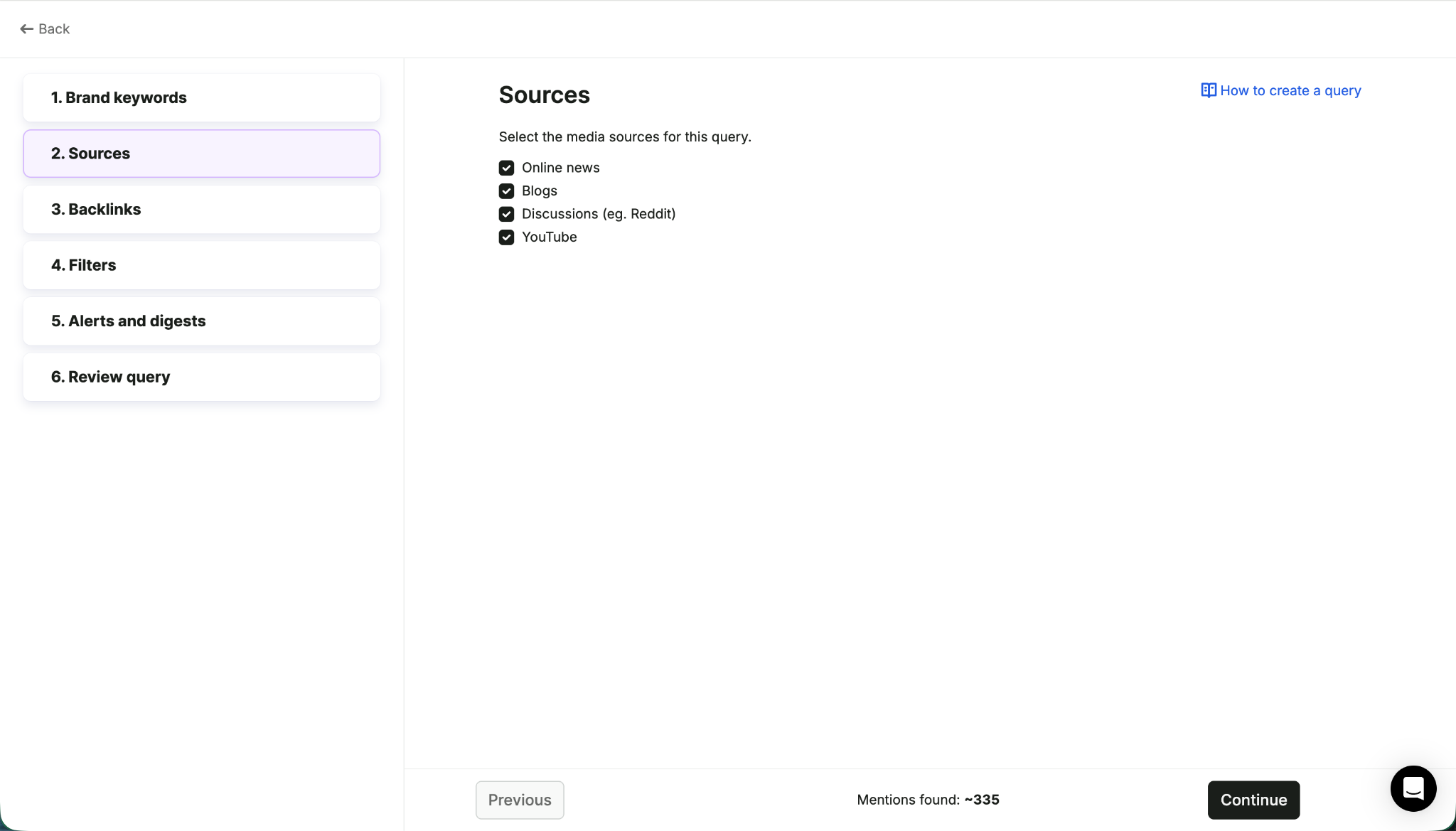
- Click Continue
Note: You must select at least 1 source to proceed.
Step 3: Add backlinks (optional)
- Under Backlinks, enter the URLs you want to track, such as your website, newsroom, or campaign landing page
- Click Continue
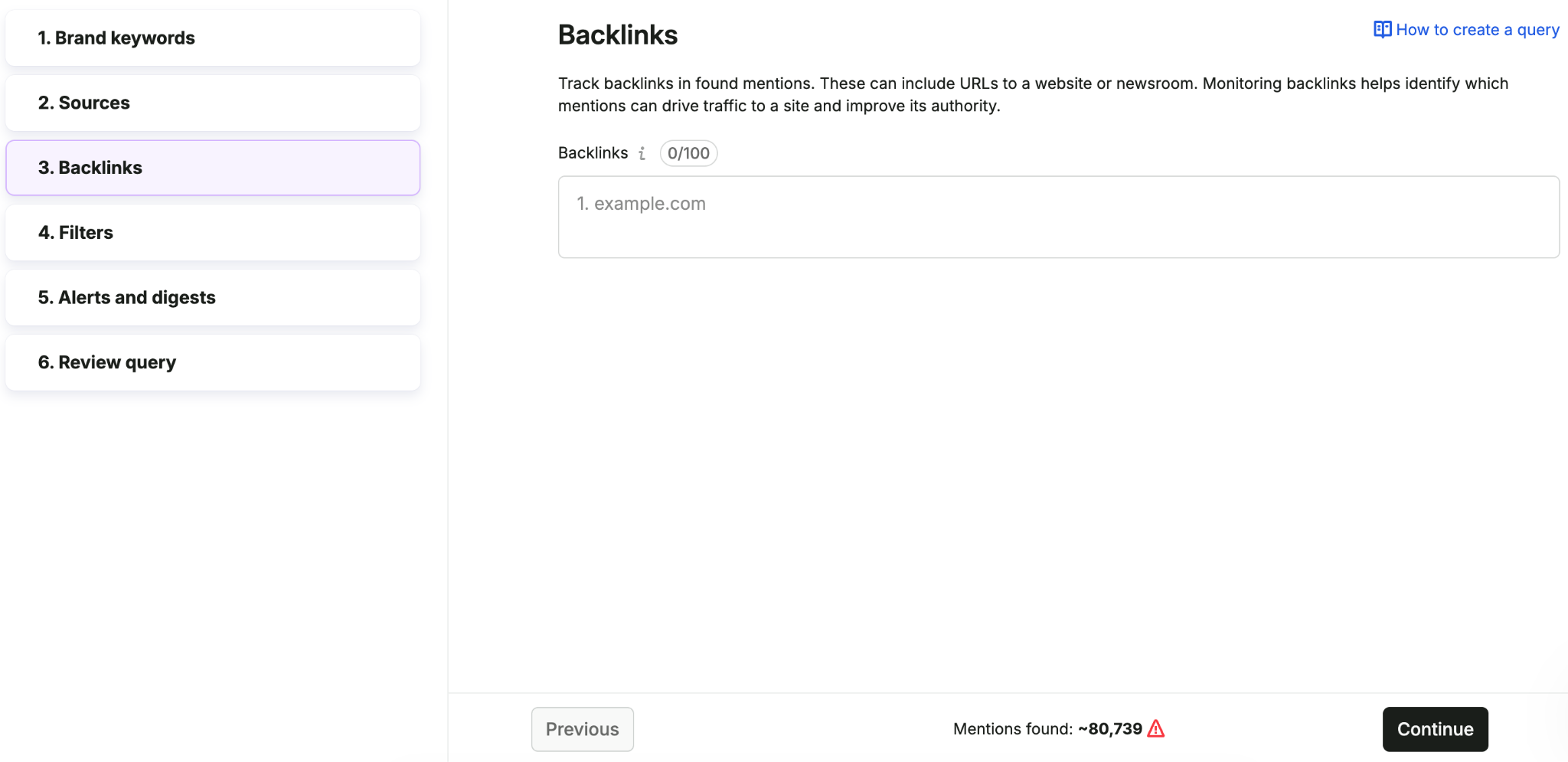
AI PR Toolkit returns all results that match your search terms, whether or not they include the URLs you added. Adding URLs here makes it easier to find mentions with backlinks in your monitoring dashboard.
Step 4: Set filters (optional)
- Under Filters, narrow your results by Country, Language, or Date range (From now, Last 7 days, or Last 30 days)
- Click Continue
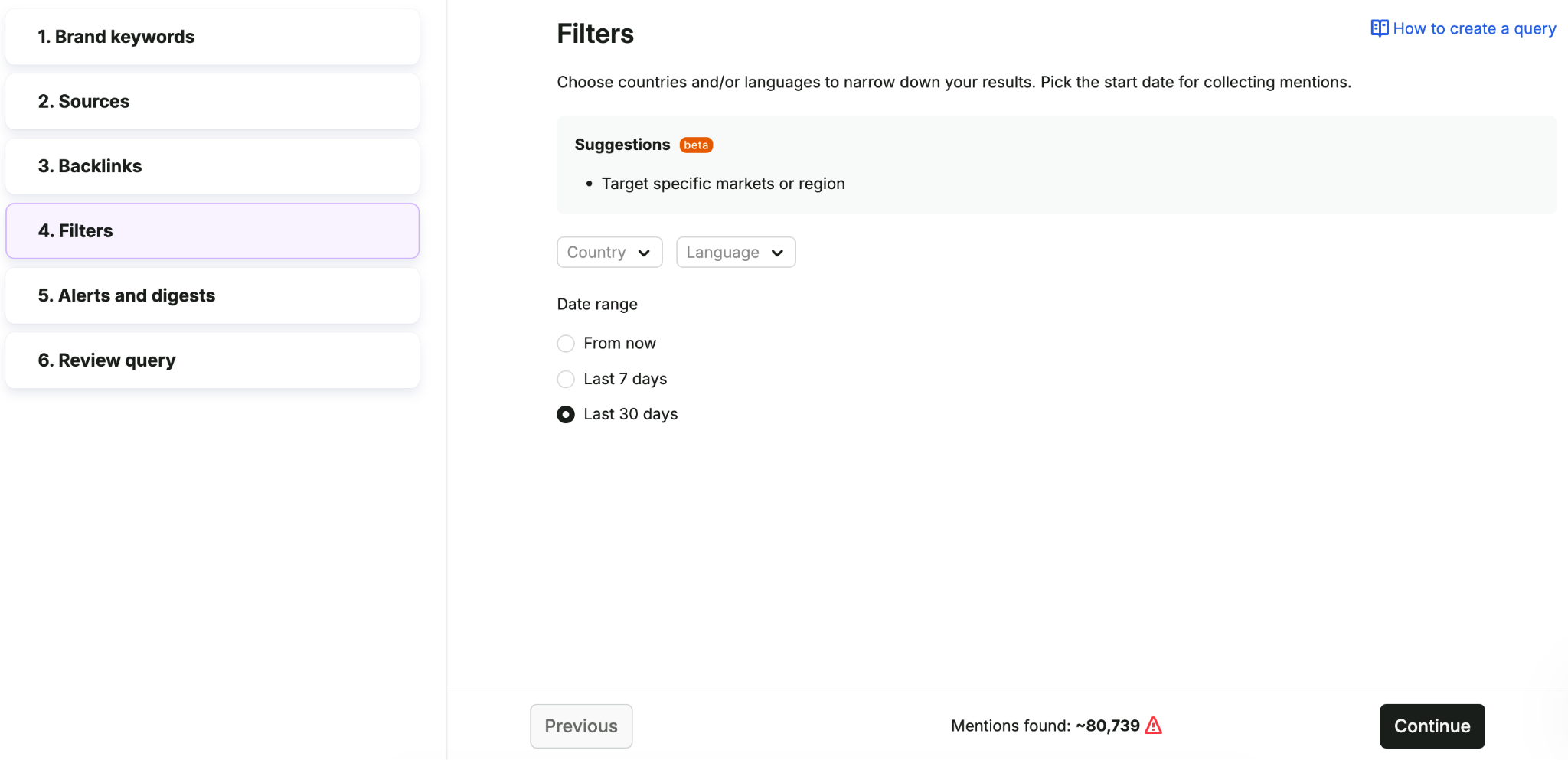
Tip: Filters are most useful when your keywords are broad or your results are too general.
Step 5: Set up alerts and digests (optional)
- Under Alerts and digests, toggle on the updates you want to receive:
- Daily digest: A daily news scan with an AI coverage summary
- Weekly digest: A weekly news overview with an AI coverage summary
- Monthly digest: A monthly news recap with an AI coverage summary
- New mention alert: Notifies you each time new mentions appear
- Unusual spike alert: Notifies you when mentions surge
- Click Continue
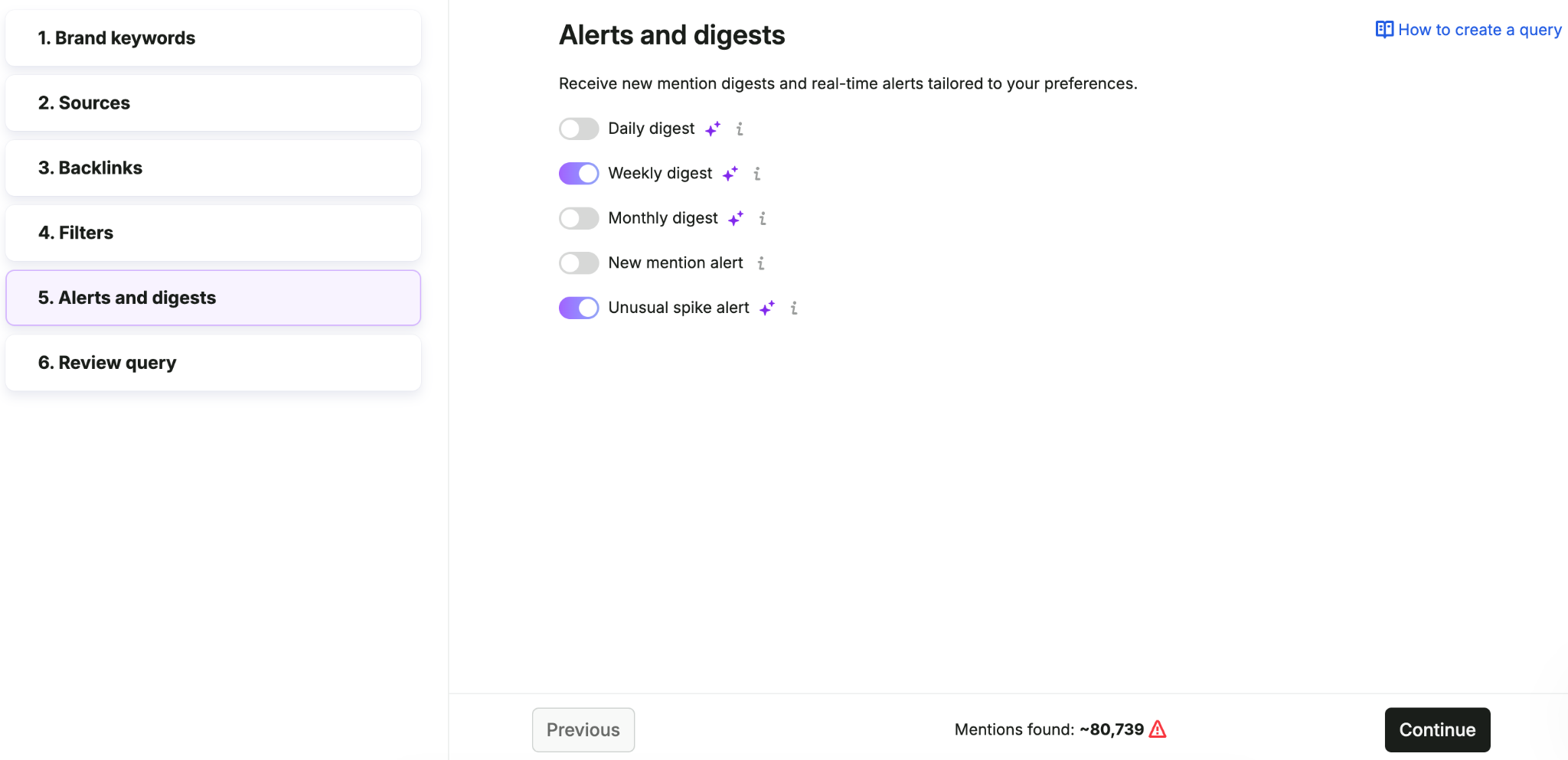
You can enable 1 or more options, or skip this step.
Step 6: Review and create your query
- Review the summary of your query — keyword combinations, selected sources, filters, and alerts
- Click Create query
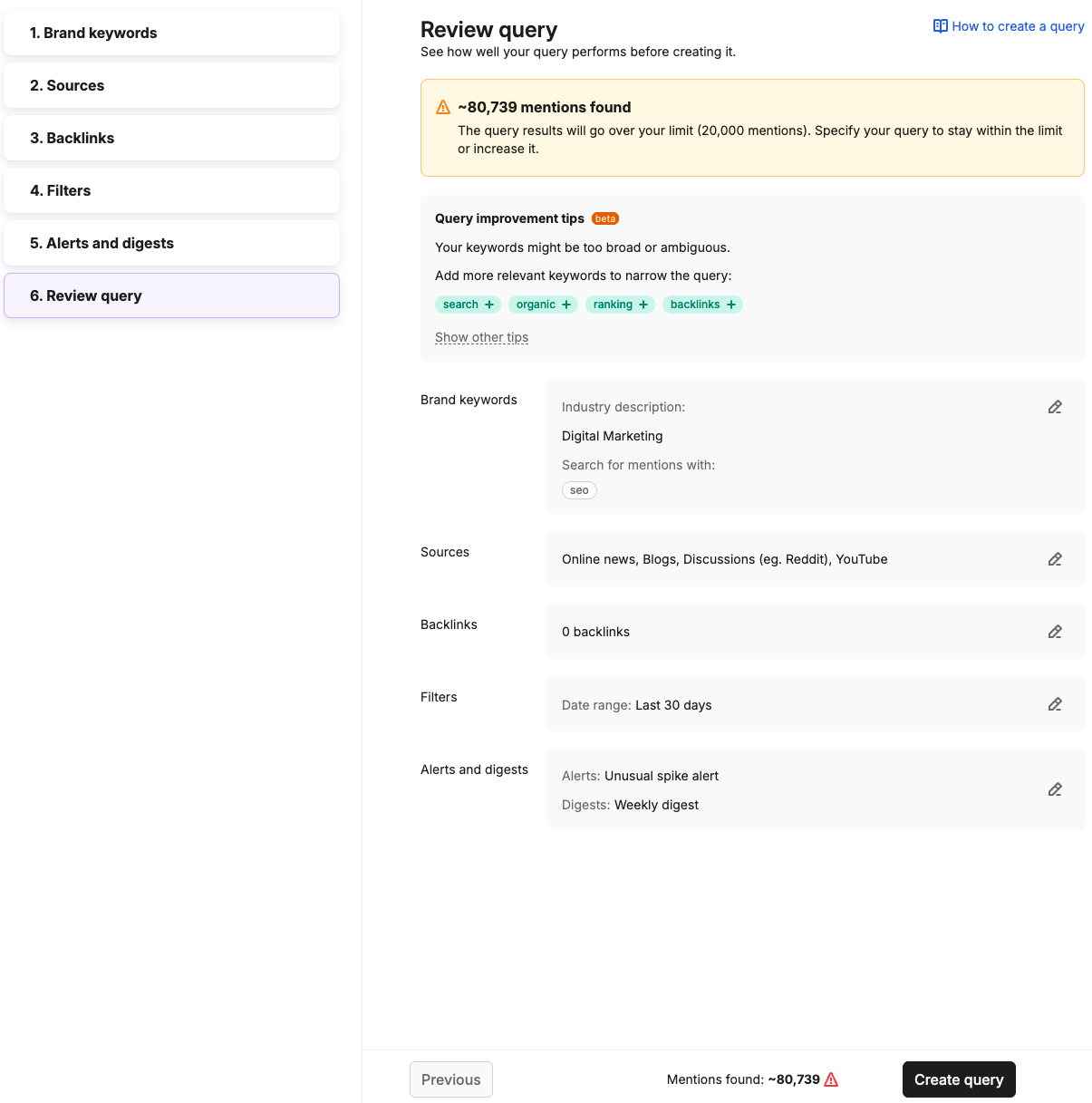
Your query starts tracking immediately, and your results appear in the Media Monitoring dashboard. You can edit the query at any time to adjust keywords, sources, filters, or notifications.
Note: If your query is too broad, you'll see a warning with suggestions for narrowing it down.